
GPU rental
Configure a GPU cluster
Select GPU capacity, location, duration, and payment options.
Use the GPU configurator to build a dedicated cluster for AI and compute workloads. Complete the selections from top to bottom; MineHarbor recalculates the order price whenever a selection changes.
1. Choose the GPU model

Review the GPU model, memory size, architecture, and hourly rate. Larger-memory GPUs are useful for bigger models and datasets, but they also increase the total rental price.
2. Select the quantity

Choose how many GPUs you need. MineHarbor automatically displays the chassis count for the selected hardware. In this example, eight GPUs fit in one chassis.
3. Choose the rental term

Select the rental period that fits your project. The menu shows the term length and hourly unit rate. The final quote uses the complete term, not just one hour.
4. Select a location

Choose an available data-center location. Consider latency, data residency, and proximity to your users or datasets before continuing.
5. Add an SSH public key (optional)
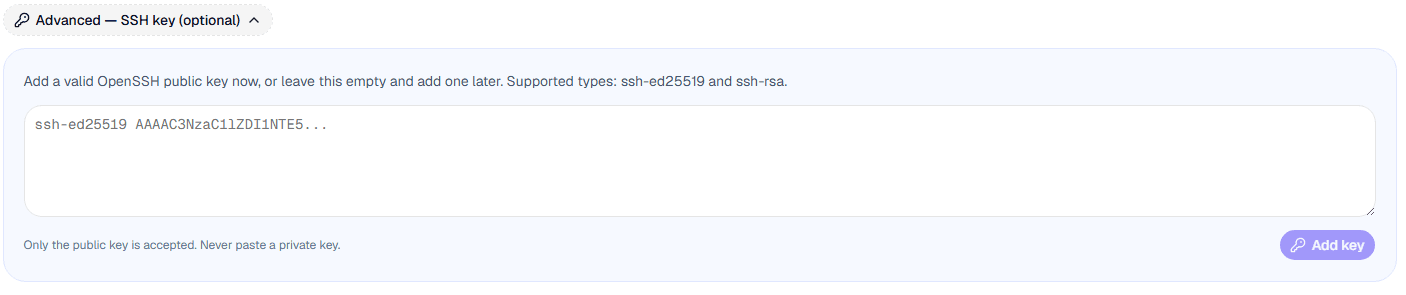
Open the Advanced — SSH key section if you want MineHarbor to install a key during provisioning. Paste one complete public key beginning with ssh-ed25519 or ssh-rsa, then select Add key.
6. Review the calculated price

Check the total USD price and the estimated BTC equivalent. In the example, four GPUs at $0.46 per hour for 720 hours produce a $1,324.80 monthly quote. Select Proceed to checkout only after every selection is correct.
7. Review the checkout and choose payment
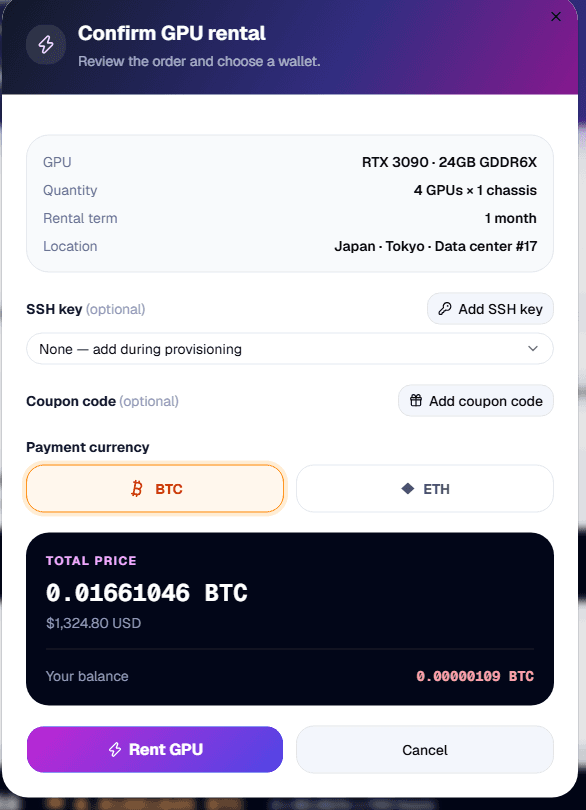
The confirmation window lists the GPU, quantity, rental term, and location again. Select BTC to calculate the amount in Bitcoin. You may also attach a saved SSH key or activate an eligible coupon before payment.
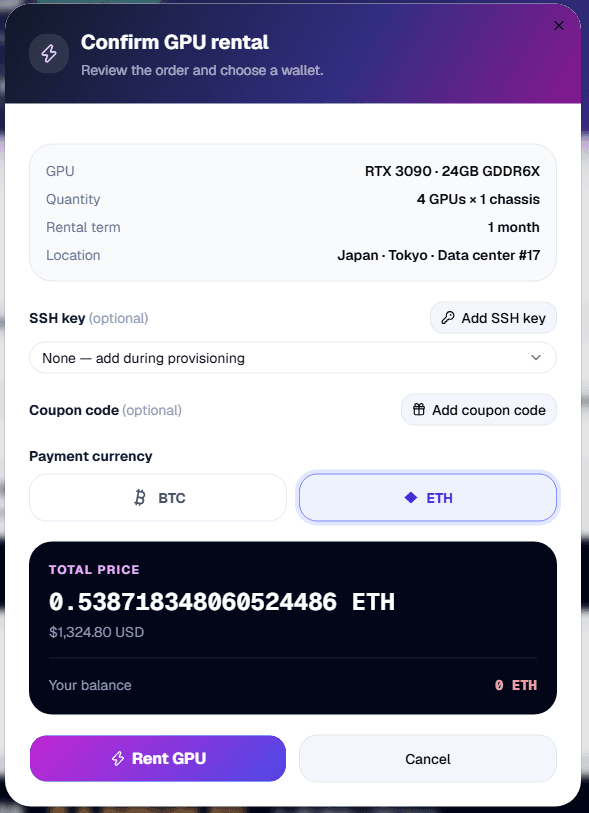
Select ETH if you prefer to pay from your Ethereum balance. Changing the payment asset does not change the USD order price; it recalculates the crypto amount using the current server quote.